Intune - Win32 Printer Package
Synopsis: Process for creating deploying Printers through Intune.
Published April 12th, 2026
Last Modified: May 13th, 2026
Intro: Deploying some printers through Intune. A couple of different steps here. I've come across a couple guides and this one is mine.
Published April 12th, 2026
Last Modified: May 13th, 2026
Intro: Deploying some printers through Intune. A couple of different steps here. I've come across a couple guides and this one is mine.
Quick Run Down
-
1.) Printer Driver
2.) Creating Win 32 Package
3.) Additional Reading
Printer Driver
-
1.) Identify the Printer Driver source files required.
Recommended this can be taken from the printer server.
Run the following on the print server in Admin CMD:
dism /Online /get-drivers /format:table > C:\TEMP\driversExport.txt
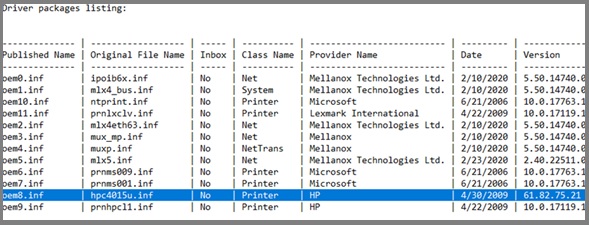
Compare to Printers on Print Server to Find Matching Driver Name. In the highlighted example, the HP printer driver we need is ‘hpc4015u.inf’. We can use the driver version of 61.82.75.21, as another clue, when trying to match what driver is in current use by the printer.
2.)Identify the ‘Original File Name’ to find locally on print server
On the Print Server Navigate to the local driver store :
"C:\Windows\System32\DriverStore\FileRepository "
Try and locate the folder with the name identified in the last step.
3.) Export the whole folder to your machine.
Creating Win 32 Package
-
1.) Prep Additional Info for Package Creation
Additional info will be required for the Intune deployment.
Sample:
$fileName = hpc4015u.inf
$driverName = "HP LaserJet P4010_P4510 Series PCL 6"
$printerIPAddress = "172.22.1.34"
$printerName = "HP LaserJet p4010_Intune"
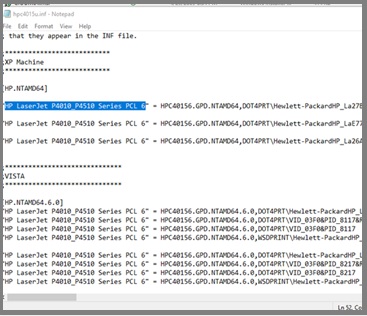
To get the Driver Name: Open the .inf in Notepad and you’ll see the name repeated like so:
2.) Download the Printer Package Template Folder
3.) Add the entire driver package folder to the ‘Package_In’ folder.
You can reference the ‘Package_Sample’ folder if needed. Your data should reflect that.
4.)Add both the .PS1 scripts and the LICENSE.TXT from the ‘Package_Scripts’ folder, to your ‘Package_In’ Folder.
5.)Use the IntuneWinAppUtil.exe file to create the .win file
Run CMD Prompt as Admin, and navigate to the folder you downloaded. Run the utility app. Use the following parameters when prompted.
            IntuneWinAppUtil.exe

            Please specify the source folder: Package_In

            Please specify the setup file: Install-Printer.ps1

            Please specify the output folder: Package_Out

            Do you want to specify catalog folder (Y/N)? N
Now there is a .win file available in the Package_Out Folder.
Intune App Deployment
-
1.)Apps > Windows > Add > App Type : “Win32”
2.)Continue through each section and fill in the needed information
- App Information, Select app package file:
- Program
- Requirements
- Detection Rules
- Dependencies
- Supersedence
- Assignments
3.) Example Install Command (Update with Parameters from section above.)
powershell.exe -executionpolicy bypass -file Install-Printer.ps1 -PortName "IP_10.1.16.67_INTUNE" -PrinterIP "10.1.16.67" -PrinterName "FB-Brother MFC-L8900CDW _INTUNE" -DriverName "Brother MFC-L8900CDW series" -INFFile "brprc16a.inf"
4.) Example Uninstall Command (Update with Parameters from section above.)
powershell.exe -executionpolicy bypass -file Remove-Printer.ps1 -PrinterName "FB-Brother MFC-L8900CDW _INTUNE”
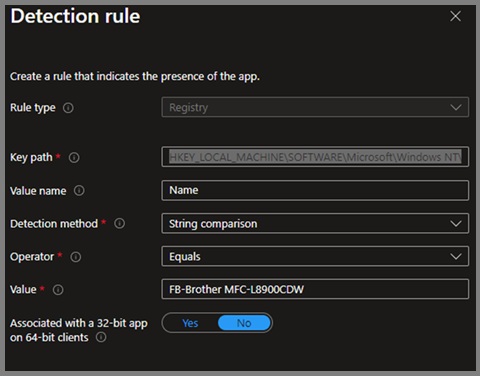
5.) Detection rule example
Registry Key: HKEY_LOCAL_MACHINE\SOFTWARE\Microsoft\Windows NT\CurrentVersion\Print\Printers\FB-Brother MFC-L8900CDW_Intune
Additional Reading
Troubleshooting Tips
- None. You're on your own, Dawg.