DUO - Protect O365
Synopsis: Outlines the process required to connect O365 to Duo. Ultimately allows conditional access to ask Duo to MFA the end user.
Published February 17th, 2026
Last Modified: February 17th, 2026
Intro: A standard deployment of MFA for duo. A handful of prerequesites and recommendations for a clean user experience.
Published February 17th, 2026
Last Modified: February 17th, 2026
Intro: A standard deployment of MFA for duo. A handful of prerequesites and recommendations for a clean user experience.
Quick Run Down
-
1.) Requirements
2.) Configure Duo Application
3.) Create Custom Control
4.) Create Conditional Access Policy
5.) Recommendations
6.) Troubleshooting Tips
Requirements
- Ensure each user account has a license that includes: ‘Azure AD Premium P1’
- Security defaults will need to be disabled for the tenant if they're not already using conditional access policies
Configure Duo Application
-
Add application to be protected:
In the customer DUO tenant -> Applications -> Protect an Application.
Search for the required Application, ‘MS Azure AD’.
Follow the prompts to authorize DUO, you will need to sign in with a Global Admin account.
When you are directed back to the Duo admin page you should copy the custom control JSON in the details section.
Also toggle the 'Enable for all users' radial button.
Create Custom Control
-
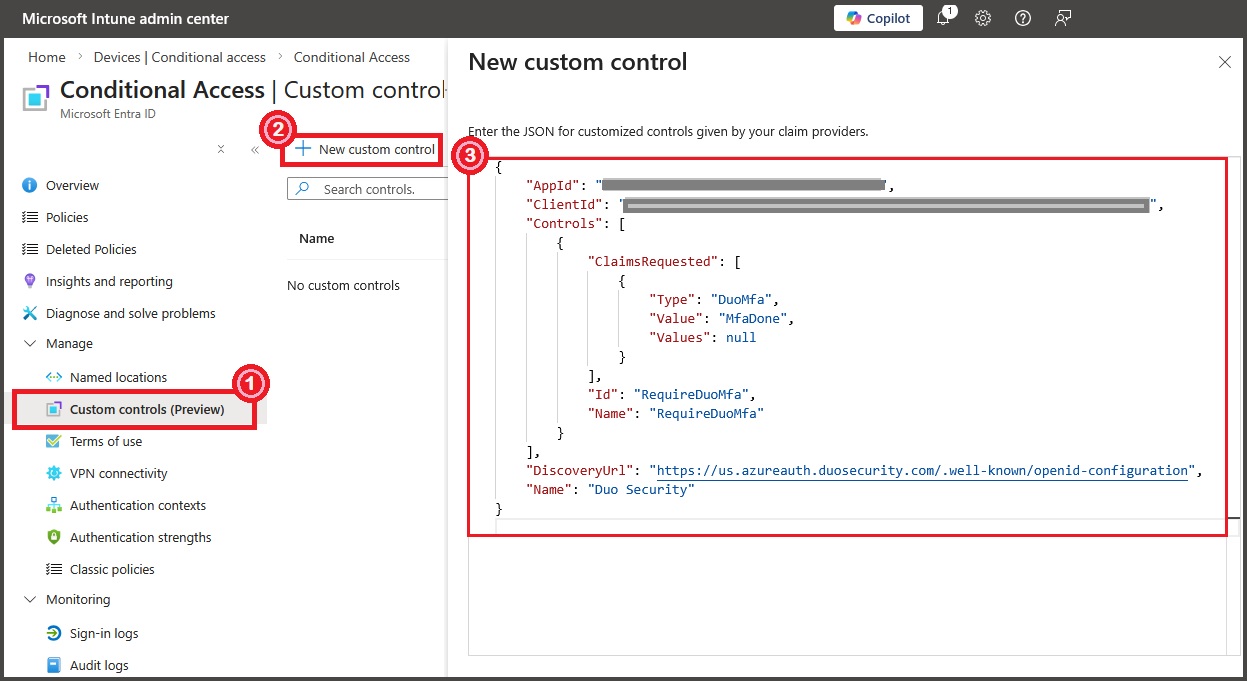
Create Custom Control:
Log into the customer azure portal (https://portal.azure.com)
NOTE: You will need to sign into the customer O365 tenant during this process with Global Admin creds. Complete these steps in a private browsing session to avoid auth issues.
Azure Active Directory -> Security -> Conditional Access -> Custom Controls -> New Control
FYI, portal can be slow, if things are greyed out or slow to load just wait. Should become active eventually.
Remove example text -> copy in the JSON control text you copied earlier
Click Create
screenshot taken 2.17.26
Create Conditional Access Policy
-
Create the CA policy
From Conditional Access -> Policies -> New Policy
Create a name – ‘Require Duo MFA’
Select the users and groups you want to apply the policy to
Typically a test user or group only initially
Setup a Security Group for testing in O365
‘O365 – Duo MFA – Test'
Add a comment to identify it is related to deployment
Exclude at least the current admin account and the ‘Duo MFA - Excluded Accounts’ group
This should NOT affect the management portal (as you will be specifying apps to protect in the next step).
But to avoid unintentional lockout it’s a good idea.
Recommendations
-
PLACEHOLDER TEXT
Troubleshooting Tips
-
End Users receiving ‘2’ MFA Prompts:
Legacy authentication methods may exist in the tenant which can cause the end users to receive both a Duo prompt, and a second MFA prompt through either text message or MS Authenticator. Review the following guide: https://help.duo.com/s/article/7591?language=en_US , in particular the instructions for disabling per-user mfa.